Roblox & CapCut Editing w/ Jr. Mod AuetheticAlexis
Edit Roblox gameplay clips using CapCut with Jr. Mod AuetheticAlexis, learning cuts, transitions, text, and music to create a short highlight video.


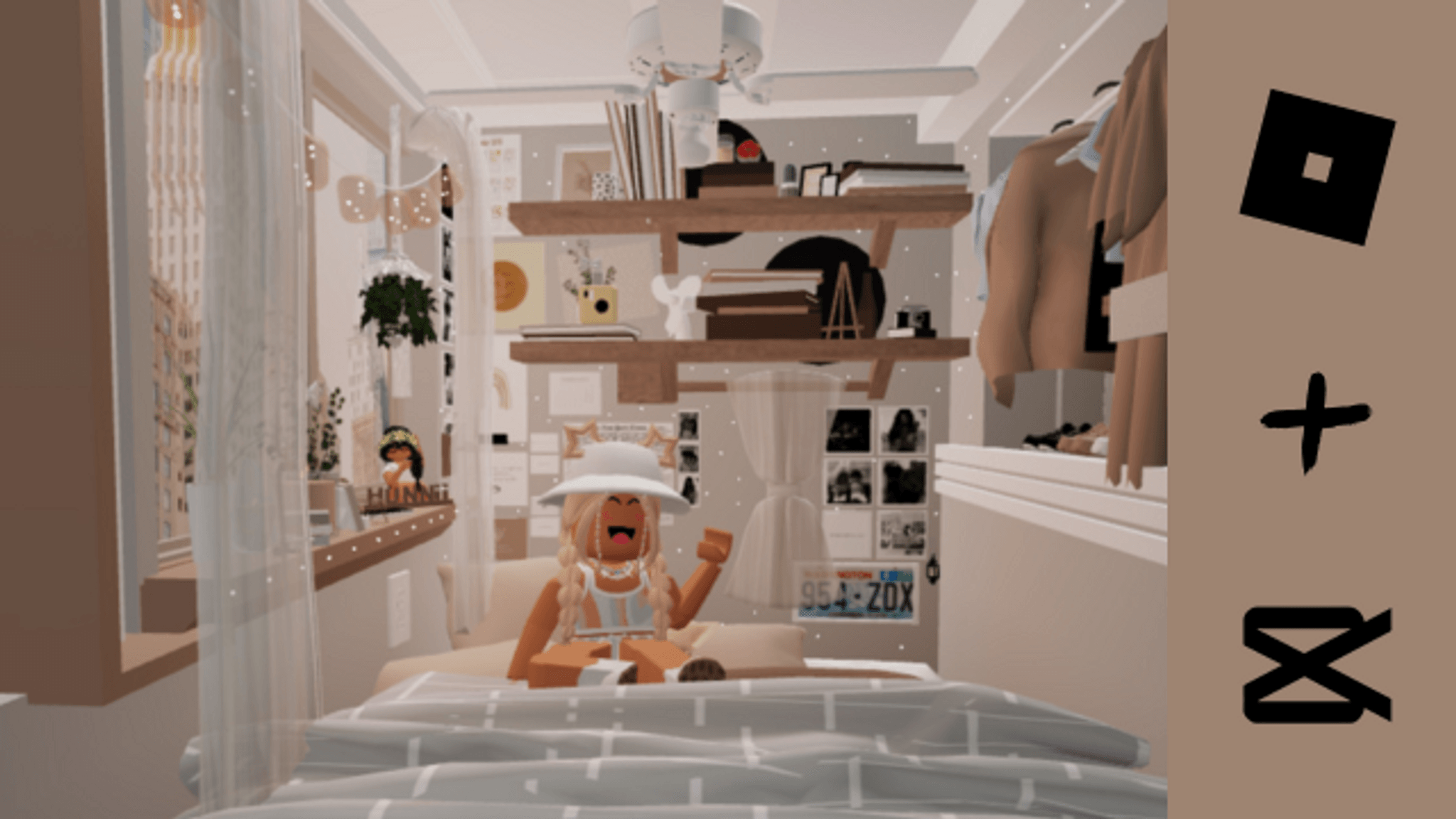

Step-by-step guide to Roblox and CapCut editing with Jr. Mod AuetheticAlexis
Roblox, Explained (for Beginners)
Step 1
Gather your CapCut app and choose 3 to 5 recorded Roblox clips you want to edit.
Step 2
Open CapCut and start a new project.
Step 3
Import your chosen Roblox clips into the project timeline.
Step 4
Put the clips in the order you want them to play by dragging them on the timeline.
Step 5
Trim each clip so only the most exciting 2 to 6 seconds remain.
Step 6
Add one transition between two clips to try a smooth change.
Step 7
Change the speed of one clip to make it slow motion or fast for drama.
Step 8
Add a title text at the very start of the video.
Step 9
Add one caption text during a big moment to explain what happened.
Step 10
Add a music track from CapCut or your files to the timeline.
Step 11
Move one clip cut so it lines up with a beat in the music using the audio waveform.
Step 12
Lower the music volume a little so the game sounds are still heard.
Step 13
Play the whole video from the start to check how it looks and sounds.
Step 14
Export the video at 1080p and save it to your device.
Step 15
Share your finished Roblox highlight video on DIY.org so everyone can see your edit.
Help!?
What can I use if I don't have CapCut or saved Roblox clips?
If you don't have CapCut, use a free editor like VN or InShot to import your Roblox screen recordings, and if you don't have clips record 3–5 short Roblox replays or use your device's screen recorder before importing.
My clip won't line up with the music beat when I move a cut using the audio waveform — what should I try?
Zoom in on the CapCut timeline, enable frame-snapping (or nudge the clip by single frames), and re-trim the adjacent clips so the moved cut matches the music waveform and your transition still looks smooth.
How can I adapt this editing activity for different ages?
For younger kids do a simplified version: pick 1–2 Roblox clips, trim to one exciting 2–3 second moment, add a title and a preset track, while older kids can add multiple transitions, speed changes, captions, precise beat-syncing, and export at 1080p for sharing.
How can I make my Roblox highlight video more unique or advanced?
Personalize it by adding a custom thumbnail and voiceover, use color filters or split-screen clips in CapCut, fine-tune music volume so game sounds remain, and include an end screen before exporting at 1080p to share on DIY.org.
Watch videos on how to edit Roblox gameplay using CapCut with Jr. Mod AuetheticAlexis
The Story of Roblox
3 Videos
The Story of Roblox
What is Roblox? Why do people play it?
BEST ROBLOX GAMES FOR KIDS
Facts about video editing for kids
🎮 Roblox launched in 2006 and includes Roblox Studio so players can make their own 3D games and experiences.
🎬 CapCut is a popular free mobile video editor from ByteDance used by creators to make short social videos.
✂️ The simplest and most powerful edit is the cut — joining two clips cleanly to control pace and story.
🎵 Many creators match their cuts and transitions to the beat of a song to make highlight clips feel punchy.
🚀 Short highlight videos (around 30–60 seconds) perform really well on platforms like TikTok and Instagram Reels.
How do I edit Roblox gameplay clips with CapCut alongside Jr. Mod AuetheticAlexis?
What materials do I need to edit Roblox clips in CapCut with Jr. Mod AuetheticAlexis?
What ages is Roblox and CapCut editing with Jr. Mod AuetheticAlexis suitable for?
What safety tips should parents follow when kids edit and share Roblox highlight videos?
