Make Your Gacha's Hair Glow With XxStaryClxvercreamxX
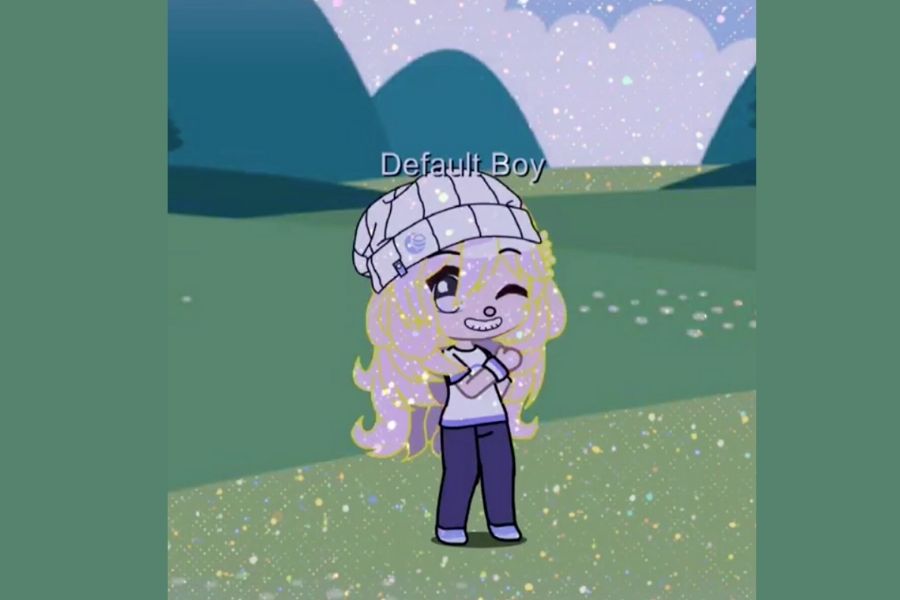
Use a kid safe drawing app to make your Gacha character's hair glow, learning layers, color blending, and simple light effects.
About this activity
Use a kid safe drawing app to make your Gacha character's hair glow, learning layers, color blending, and simple light effects.
What you need
Step by step
- 1
Step 1
Open your kid-safe drawing app.
- 2
Step 2
Import or open your saved Gacha character image in the app.
- 3
Step 3
Create a new layer above your character layer and name it "Glow".
- 4
Step 4
Choose a soft round brush from the brush menu.
- 5
Step 5
Pick a bright color you want your hair to glow with.
- 6
Step 6
Set the brush opacity to about 40 percent.
- 7
Step 7
Paint softly around the outer edges of the hair on the "Glow" layer.
- 8
Step 8
Change the "Glow" layer blend mode to "Add" or "Screen" or "Glow" whichever your app shows.
- 9
Step 9
Create another new layer above "Glow" and name it "Highlights".
- 10
Step 10
Choose a smaller brush for drawing hair strands.
- 11
Step 11
Pick a lighter color for bright highlights.
- 12
Step 12
Paint thin highlight strokes on a few hair strands on the "Highlights" layer.
- 13
Step 13
Use the blur or smudge tool at low strength to gently soften the glow edges on the "Glow" layer.
- 14
Step 14
Save or export your glowing Gacha image to your device.
- 15
Step 15
Share your finished glowing Gacha hair creation on DIY.org.
Fun facts
How do I make my Gacha's hair glow with XxStaryClxvercreamxX?
To make your Gacha's hair glow, open a kid‑safe drawing app and import the character. Paint the base hair on one layer, then add a new layer set to a glow or screen blending mode. Use a soft brush to apply lighter tones where light hits, add thin bright highlights and a subtle rim light, then gently blur and lower opacity for realism. Save often and export a copy when you like the result.
What materials do I need to make glowing Gacha hair?
You need a tablet or phone with a kid‑safe drawing app that supports layers and soft/airbrush tools, the Gacha character image or screenshot, and optionally a stylus for finer control. A quiet workspace and a lighting reference help. Make sure the app has parental controls, and disable in‑app purchases if possible. That’s usually all you need to create glowing hair effects.
What ages is this glowing Gacha hair activity suitable for?
This activity suits children about 6–14 years old. Younger kids (6–8) will enjoy guided steps and basic highlights with adult help, while older kids (9–14) can explore layers, blending modes, and light techniques more independently. Adjust complexity to the child’s attention span and dexterity, and always supervise device use and app settings for safety.
What are the benefits and safety tips for making Gacha hair glow?
Benefits include improved fine motor skills, color theory basics, layer understanding, and creative confidence. Safety tips: use a vetted kid‑safe app, enable parental controls, turn off purchases, and supervise any sharing. Limit session length to avoid eye strain and encourage breaks. For variety, try neon or pastel glows, add sparkles, or export a few glow layers as frames to make a simple animation.
Watch & Learn
Need help?
What can we use if we don't have a kid-safe drawing app or the 'Glow'/'Add' blend mode in the instructions?
Use free kid-friendly apps like ibisPaint X or Autodesk SketchBook which include 'Add' or 'Screen' blend modes, or if your app lacks those, duplicate the character layer and paint soft color on the copy with low opacity to mimic the 'Glow' layer.
Why does the hair glow look faint or not show up after following the steps?
Make sure the 'Glow' layer is above your character layer, the brush opacity is set near 40 percent, the layer blend mode is switched to 'Add'/'Screen'/'Glow', and if it's still faint try a brighter color or duplicate the 'Glow' layer to intensify it.
How can I adapt this glow activity for younger kids or older kids?
For younger kids simplify by using a single large soft brush at 40 percent opacity on one layer, while older kids can create the 'Highlights' layer, paint thin strand strokes, use low-strength blur/smudge, and experiment with multiple blend modes for advanced effects.
What are some ways to extend or personalize the glowing Gacha hair project?
Add a second 'Glow' layer with a contrasting color and different blend mode, paint tiny sparkles on a new layer with a small brush, or export several slightly different glow states to make a simple animated GIF before sharing on DIY.org.