Design Your Own App/web
Design your own simple app or website using paper prototypes and block coding; plan screens, add buttons, and test ideas with friends.
About this tutorial
Design your own simple app or website using paper prototypes and block coding; plan screens, add buttons, and test ideas with friends.
What you need
Step by step
- 1
Step 1
Choose a fun app or website idea and write one short sentence that says what it does.
- 2
Step 2
Decide who will use your app and write their name or age next to your idea.
- 3
Step 3
Make a quick list of the main screens your app needs and write each screen name on the top of a separate paper.
- 4
Step 4
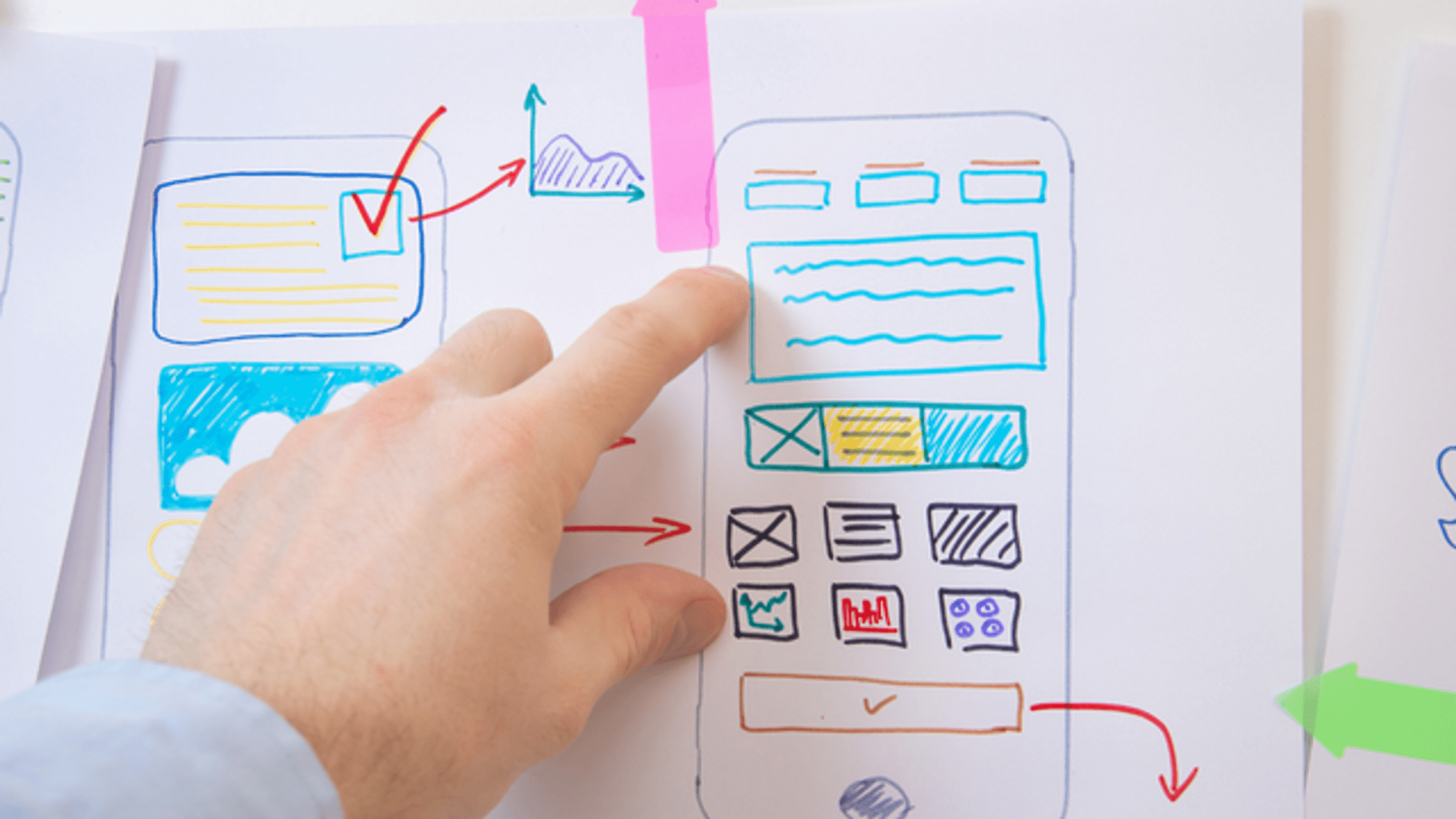
Draw the first screen on one paper with a big title and one main picture.
- 5
Step 5
Draw the other screens on their papers showing where pictures and text will go.
- 6
Step 6
Add buttons on each drawn screen and label each button with what it should do.
- 7
Step 7
Use sticky notes or arrows to show which button goes to which screen.
- 8
Step 8
Tape the pages together so you can flip from screen to screen like a real app.
- 9
Step 9
Ask a friend to try tapping the buttons while you change the pages to match their taps.
- 10
Step 10
Write down two things to change from the test and mark them on your paper screens.
- 11
Step 11
Open a block-coding tool (like Scratch) and start a new project to turn your paper screens into digital screens.
- 12
Step 12
Create each screen in the tool and add a button sprite that you program with blocks to switch screens when clicked.
- 13
Step 13
Test your interactive app in the tool, fix any bugs you find, and then share your finished creation on DIY.org
Fun facts
How do I guide my child to design a simple app or website using paper prototypes and block coding?
Start by brainstorming the app’s purpose and sketching each screen on paper. Cut out buttons, icons, and menus from paper and use sticky notes to simulate navigation. Test the paper prototype with family or friends and note changes. Then open a block-coding tool (Scratch, ScratchJr, MIT App Inventor) and recreate screens with simple sprites/blocks. Add button behaviors, transitions, and test interactions. Iterate quickly, keep features small, and celebrate working prototypes.
What materials do we need to design a paper prototype and then build it with block coding?
Basic materials: paper, colored markers, pencils, scissors, sticky notes, tape or glue, index cards, and a ruler for neat screens. For digital prototyping use a tablet or computer and free block-coding platforms like Scratch, ScratchJr, MIT App Inventor, Thunkable, or Blockly. Optional: printer for templates, stickers for icons, and a webcam/mic to record user tests. Reliable internet and an adult account may be needed for some online tools.
What ages is designing a paper prototype and using block coding suitable for?
Paper prototyping works for ages 4–12: preschoolers (4–6) enjoy drawing screens and moving paper buttons with adult help. Block coding is best introduced with ScratchJr for ages 5–7, Scratch for 8+, and MIT App Inventor or Thunkable for 10–14+ when they can plan logic and variables. Adapt complexity, use pair programming with an adult for younger kids, and focus on short sessions to match attention spans.
What are the benefits of making paper prototypes and learning block coding with friends?
Designing an app and building it with paper prototypes and block coding boosts creativity, planning, and problem-solving. Kids learn sequencing, user-centered thinking, and basic programming concepts like events and variables. It encourages communication and teamwork when testing with friends, builds confidence through rapid iteration, and introduces user interface design and accessibility awareness. These activities also strengthen fine motor skills, vocabulary, and logical reasoning in a low-p
Watch & Learn
Need help?
What can we use if we don't have sticky notes or tape to show button links and attach pages?
If you don't have sticky notes or tape, use index cards or cut paper tabs for arrows and fasten pages together with binder clips, staples, or a glue stick so you can still 'tape the pages together' and flip screens.
My button sprite in the block-coding tool doesn't switch screens when clicked—what should I check?
If a button sprite doesn't switch screens, verify you recreated each paper screen as a Scratch backdrop or sprite and use a 'when this sprite clicked' block to broadcast a message or switch backdrop while ensuring no hidden sprites are covering the button.
How can we adapt the activity for different age groups?
For younger kids (4–6) simplify to 2–3 paper screens with a big title and one main picture and have an adult convert them into backdrops, while older kids (9–12+) can add more screens, complex button logic, variables, and lists when creating button sprites in Scratch.
How can we extend or personalize our app project after testing and fixing bugs?
To enhance your app, customize drawn screens with unique colors and characters, add sound effects and sprite animations using 'play sound' and 'switch costume' blocks for each button sprite, then retest and share the finished creation on DIY.org.