Make a Shadow Roblox Edit w/ ItsPotter
Create a shadow Roblox avatar edit with ItsPotter style effects using simple image or video tools; practice layering, lighting, and safe online sharing.


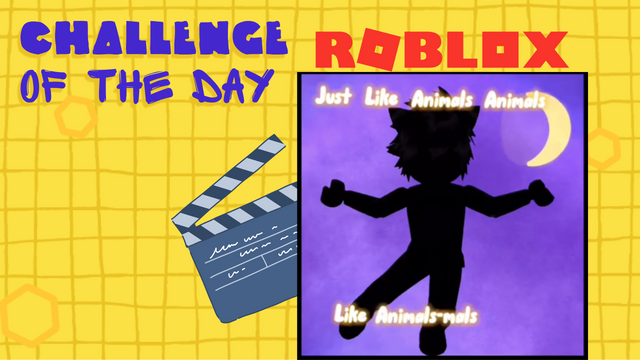
Step-by-step guide to make a shadow Roblox edit with ItsPotter
Step 1
Take a screenshot of your Roblox avatar posed on a plain background so the whole body is visible.
Step 2
Open your image or video editor.
Step 3
Import the avatar screenshot into the editor.
Step 4
Use a selection tool to trace around the avatar and cut out the silhouette.
Step 5
Create a new layer and fill the cutout silhouette with solid black to make the shadow shape.
Step 6
Duplicate the black silhouette layer to make a second shadow copy.
Step 7
Move the duplicate layer slightly down and to the right to offset it from the original shadow.
Step 8
Apply a small blur to the duplicate shadow layer to soften the edge.
Step 9
Add a dark gradient or textured background layer behind the shadow to set a moody scene.
Step 10
On a new layer draw a bright neon outline around the silhouette to add the ItsPotter style glow.
Step 11
Duplicate the silhouette again to prepare a color-split edge.
Step 12
Tint the duplicate a bright color like red or blue and nudge it a few pixels sideways to create a subtle glitch edge.
Step 13
Add a soft white spotlight on a new layer above the shadow to create dramatic lighting.
Step 14
Export your final edit as a PNG image or an MP4 video file.
Step 15
Ask an adult to check your file for personal info and then share your finished creation on DIY.org
Help!?
What can we use if we don't have the exact image or video editor listed in the instructions?
If you don't have a desktop editor, use free browser tools like Photopea or mobile apps such as Pixlr or Canva to import your avatar screenshot and cut out the silhouette with their lasso or background-removal tools.
My cutout silhouette has jagged edges or leftover background—how do I fix it?
Zoom in and refine the selection with a smaller brush, the pen/lasso tool, or the eraser, then use a slight feather or small blur before filling the cutout silhouette with solid black to make a clean shadow shape.
How can I adapt this activity for different ages or skill levels?
For younger kids, use an automatic background-removal tool or printable stencil to make the black silhouette and neon outline, while older kids can follow all steps including duplicating, tinting the color-split edge, adding blur and spotlight, and exporting as an MP4.
How can we make the edit more creative or advanced after finishing the basic steps?
Personalize the ItsPotter glow by drawing extra neon accents, applying textured backgrounds, adding colored particle brushes or animating the duplicated color-split edge a few frames to export as a glitchy MP4.
Watch videos on how to make a shadow Roblox edit with ItsPotter
HOW TO GET SHADERS ON ROBLOX (2024) (Full Guide)
4 Videos
HOW TO GET SHADERS ON ROBLOX (2024) (Full Guide)
How to make a SHADOWS ON or OFF Button | Roblox Studio Tutorial

MOVE YOUR BODY ROBLOX EDIT TUTORIAL ON CAPCUT! ✨️

Roblox Edit Tutorial (After Effects)
Facts about digital image editing for kids
🎮 Roblox has hundreds of millions of players worldwide, so avatar edits can reach lots of friends!
🌑 Silhouette art became trendy in the 18th century when artists cut profiles from paper — perfect inspiration for shadow edits.
🖼️ Most image editors (like Photoshop or free GIMP) use layers so you can place a shadow beneath an avatar and tweak it easily.
🔦 A simple three-point lighting setup—key, fill, and back light—can make shadow edits look dramatic and professional.
🔒 Before sharing your edit online, blur faces or personal details and check privacy settings so your work is safe to share.
How do I make a Shadow Roblox edit in the ItsPotter style?
What materials and apps do I need to create a Shadow Roblox edit?
What ages is this Shadow Roblox edit suitable for?
What safety tips should I follow when sharing Roblox edits online?
