Design Your Kitchen on Scratch
Use Scratch to design an interactive virtual kitchen scene with sprites, sounds, and simple code blocks to test cooking actions and organization.


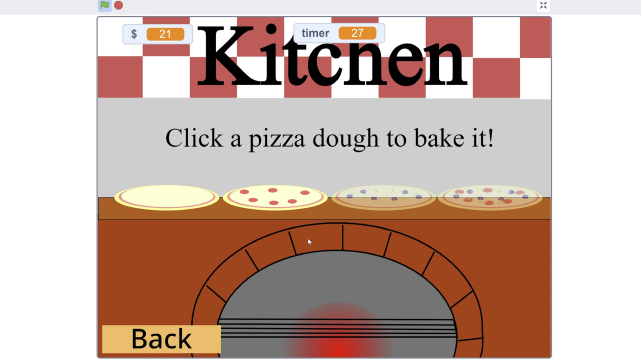

Step-by-step guide to Design Your Kitchen on Scratch
Step 1
Open Scratch and create a new project so you start with a blank workspace.
Step 2
Rename your project to "My Kitchen" so you can find it later.
Step 3
Delete the cat sprite to clear space for your kitchen characters.
Step 4
Add a kitchen backdrop from the Backdrops library or draw one so your scene looks like a real kitchen.
Step 5
Add at least three sprites for your kitchen such as a stove fridge and an ingredient (like an egg or tomato) so you have things to interact with.
Step 6
Make the ingredient sprite draggable by selecting it and turning on the "draggable" option in the sprite's settings so you can move food around the scene.
Step 7
Add a cooking sound like a sizzle or pop from the Sounds tab to the ingredient sprite so cooking will make noise.
Step 8
Create two costumes for the ingredient called "raw" and "cooked" so the food can change appearance when it cooks.
Step 9
Program the ingredient sprite so that when the green flag is clicked it shows the "raw" costume and when the ingredient is clicked it broadcasts "startCook" then waits 2 seconds and switches to the "cooked" costume while playing the sizzle sound.
Step 10
Program the stove sprite so that when it receives the "startCook" broadcast it switches to an "on" costume for 2 seconds and optionally plays a flame sound so the stove looks like it's cooking.
Step 11
Test your kitchen by clicking the green flag then dragging the ingredient to the stove and clicking it to cook; adjust costumes timings sounds or positions if something looks off.
Step 12
Share your finished interactive kitchen project on DIY.org so others can see and try your creation.
Help!?
What can we use if we can't find a kitchen backdrop or a sizzle sound in Scratch?
If you can't find a kitchen backdrop, draw one in the Backdrops editor or import a photo, and if there's no sizzle sound use another built-in sound like 'pop' from the Sounds tab or record your own.
My ingredient doesn't switch to 'cooked' when clicked — what should I check?
Check that the ingredient sprite has costumes named exactly 'raw' and 'cooked', that its script uses 'when this sprite clicked' to broadcast 'startCook', includes 'wait 2 seconds' before switching to the 'cooked' costume, and that the sizzle sound is added to the ingredient's Sounds tab.
How can I adapt this activity for younger or older kids?
For younger kids, simplify by using pre-made stove/fridge/ingredient sprites and a single 'when this sprite clicked -> switch costume and play sound' script, while older kids can add variables for cooking time, multiple ingredients with different broadcasts, keyboard controls, or scoring.
How can we extend or personalize the kitchen project after finishing?
Extend the project by adding more ingredient sprites with unique 'raw'/'cooked' costumes and sounds, animating the stove with an 'on' costume and flame sound, creating a score variable for correctly cooked items, and customizing costumes in the Paint editor before sharing on DIY.org.
Watch videos on how to Design Your Kitchen on Scratch
The Art of Kitchen Design | A Guide to Designing a Timeless & Functional Kitchen
4 Videos
The Art of Kitchen Design | A Guide to Designing a Timeless & Functional Kitchen
How to Draw a Kitchen using One-Point Perspective for Beginners
Scratch Basics - A Beginners Guide to Scratch
Beginners Guide To Scratch (VERY Simple)
Facts about Scratch programming for kids
🐱 Scratch was developed at the MIT Media Lab and has helped millions of kids worldwide create interactive projects.
🍳 Many kitchen designs use the 'work triangle' (sink, stove, fridge) to make cooking and cleaning more efficient.
🖼️ In Scratch, sprites can have multiple 'costumes' so you can animate actions like stirring, chopping, or opening a cupboard.
🔊 Adding short sound effects or recorded voices makes a virtual kitchen feel alive and helps teach timing and events in code.
🧑🍳 Simple Scratch blocks like 'when this sprite clicked' and 'broadcast' let you script cooking steps and organize tasks in your scene.
How do I design a virtual kitchen on Scratch?
What materials do I need to design a kitchen on Scratch?
What ages is designing a kitchen on Scratch suitable for?
What are the benefits of designing a kitchen on Scratch?
