Tell Us Your Favorite Game on Scratch
Make a short poster or video describing your favorite Scratch game, explain what you like about it, and share it with classmates.


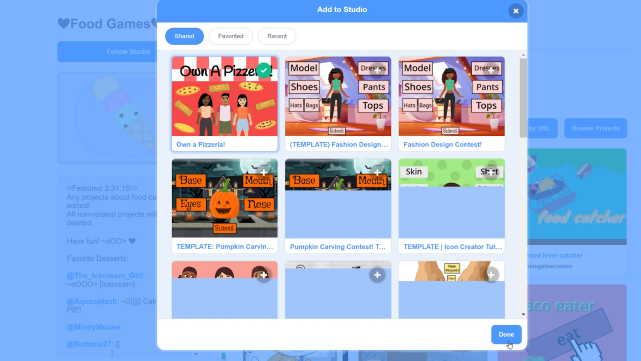

Step-by-step guide to Tell Us Your Favorite Game on Scratch
Step 1
Open your favorite Scratch game on the Scratch website or app.
Step 2
Play the game for 3 to 5 minutes to notice the characters and what you can do.
Step 3
Write down three things you like about the game on a piece of paper.
Step 4
Choose whether you will make a poster or make a short video.
Step 5
If making a poster sketch a layout on your paper or poster board with your pencil.
Step 6
If making a poster draw a picture of the game or its main character on your poster.
Step 7
If making a poster color your drawings and add a big, readable title with your coloring materials.
Step 8
If making a video write a short 30 to 60 second script that explains the game and why you like it.
Step 9
If making a video record a 30 to 60 second video of you saying your script about the game.
Step 10
If making a video trim your recording so it is clear and about 30 to 60 seconds long.
Step 11
Add your name and the game title clearly on your poster or at the start of your video.
Step 12
Look over your poster or watch your video and fix any small mistakes you find.
Step 13
Save your poster as a photo file or make sure your video file is ready to upload.
Step 14
Share your finished poster or video on DIY.org so your classmates can see your favorite Scratch game.
Help!?
What can I use if I don't have poster board, coloring materials, or a camera to make my poster or video?
Use a sheet of printer or notebook paper and crayons or markers instead of poster board and coloring materials, and record your 30–60 second video with a smartphone, tablet, or computer webcam if you don't have a camera.
My video audio is too quiet or the recording is longer than 60 seconds—how do I fix it before sharing on DIY.org?
Rerecord your 30–60 second script speaking closer to the microphone or use a free mobile or web editor to trim the clip to about 30–60 seconds and increase the volume before saving the video file ready to upload.
How can I adapt this activity for younger children or older kids who want more challenge?
For younger kids have an adult help write the three things you like and guide the drawing and coloring steps, while older students can write a longer script, add screenshots from the Scratch game, or analyze game mechanics in their poster or 30–60 second video.
How can I make my poster or video stand out when I share it with classmates?
Personalize your poster by adding arrows, captions, and colorful titles or enhance your trimmed 30–60 second video with a game screenshot, short background music, and a clear opening that shows your name and the game title per the instructions before uploading to DIY.org.
Watch videos on how to Tell Us Your Favorite Game on Scratch
Get Started with Scratch Guide: 5 Tips & Tricks for Beginners 🎉
4 Videos
Get Started with Scratch Guide: 5 Tips & Tricks for Beginners 🎉

Top 10 Scratch Game Tutorials by Griffpatch
Scratch Basics - A Beginners Guide to Scratch
Beginners Guide To Scratch (VERY Simple)
Facts about game design and digital storytelling with Scratch
🌍 Scratch is available in more than 70 languages so kids worldwide can create and share projects.
🐱 The Scratch Cat is the platform's friendly mascot and shows up in lots of starter projects.
🧩 Scratch uses block-based programming blocks that snap together—perfect for beginners building games.
🔁 The Scratch community encourages remixing, so many popular games started as remixes of others' projects.
🎮 Millions of user-created games and projects are shared on the Scratch website for others to play and learn from.
How do I do the "Tell Us Your Favorite Game on Scratch" activity?
What materials do I need for the activity?
What ages is this activity suitable for?
What are the benefits of doing this activity?
