What shortcuts have you learned so far while using procreate?
Learn essential Procreate shortcuts by creating a simple digital character, practicing gestures like undo, pinch-to-zoom, and layer controls while building a colorful portrait.


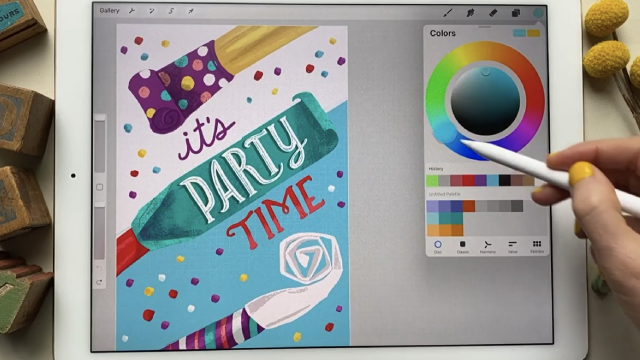
Step-by-step guide to learn Procreate shortcuts by creating a digital character
Step 1
Open the Procreate app on your iPad.
Step 2
Tap the + button and create a new canvas.
Step 3
Open the Layers panel and tap + to add a new layer for your sketch.
Step 4
Pick a pencil brush from the Brush Library.
Step 5
Draw a simple character head and face on the sketch layer.
Step 6
If you make a line you don't like use a two-finger tap to undo it.
Step 7
If you change your mind after undoing use a three-finger tap to redo it.
Step 8
Tap + in Layers to add a new layer for color.
Step 9
Drag the color layer below the sketch layer in the Layers panel.
Step 10
Use pinch-to-zoom with two fingers to zoom in on small areas to color neatly.
Step 11
Tap the color layer and choose Alpha Lock so your brush only colors inside the shapes.
Step 12
Tap the sketch layer and lower its opacity so your colors show better.
Step 13
Rotate the canvas with two fingers while you add final details.
Step 14
Share your finished creation on DIY.org.
Help!?
What can we use instead of an iPad or Procreate if we can't find them?
If you don't have Procreate or an iPad you can use a similar tablet app like Autodesk SketchBook or Adobe Fresco to create layers and use a pencil brush, or sketch on paper and photograph it to import into the app later.
What should we do if the two-finger undo or three-finger redo doesn't work while drawing the character?
If the two-finger undo or three-finger redo doesn't work, check Procreate's Gesture Controls in Settings to make sure gestures are enabled or use the undo/redo buttons in the top-left instead.
How can we adapt this activity for younger children or older kids who want more challenge?
For younger kids skip adding separate layers and combine sketch and color on one layer while using simple pinch-to-zoom and the pencil brush, and for older kids use separate sketch and color layers with Alpha Lock, lower the sketch layer opacity, and add detailed shading or rotate the canvas for fine details.
How can we extend or personalize the finished drawing before sharing it on DIY.org?
To extend the activity personalize your character by creating a custom color palette, adding a background on a new layer beneath the color layer, and exporting Procreate's time-lapse or a PNG to share on DIY.org.
Watch videos on how to use Procreate shortcuts to create a digital character
8 PROCREATE TIPS FOR BEGINNERS | easy tips for artists
4 Videos
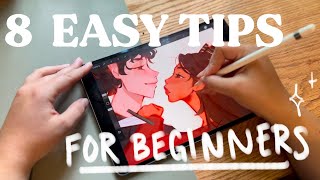
8 PROCREATE TIPS FOR BEGINNERS | easy tips for artists

PROCREATE Drawing for Beginners - EASY Step by Step Tutorial
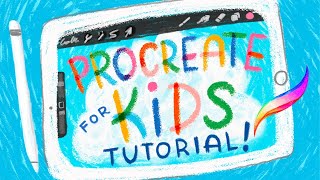
Procreate for Kids Tutorial // How to Use Procreate for Kids!
Procreate Tutorial: Complete Beginner's Guide (2025 Edition)
Facts about digital art and tablet shortcuts
🖌️ Procreate automatically records a time-lapse video of your drawing so you can replay how your character was made.
✌️ Two-finger tap is the quick undo shortcut in Procreate, and three-finger tap redoes your last change.
🔍 Pinch-to-zoom and two-finger rotate let you zoom and spin the canvas while you draw without interrupting your flow.
🧱 Layers in Procreate act like transparent sheets—use blend modes and opacity to mix colors and effects non-destructively.
✏️ The Apple Pencil senses pressure and tilt, so pressing harder makes thicker strokes and tilting creates shading-like marks.
How do you teach a child Procreate shortcuts while creating a simple digital character?
What materials do I need for this Procreate shortcut activity?
What ages is this activity suitable for?
What are the benefits and safety tips for learning Procreate shortcuts with kids?
