What's Your Social Story on Scratch?
Create an interactive social story on Scratch that shows a social situation, characters' feelings, and choices to practice communication and empathy.


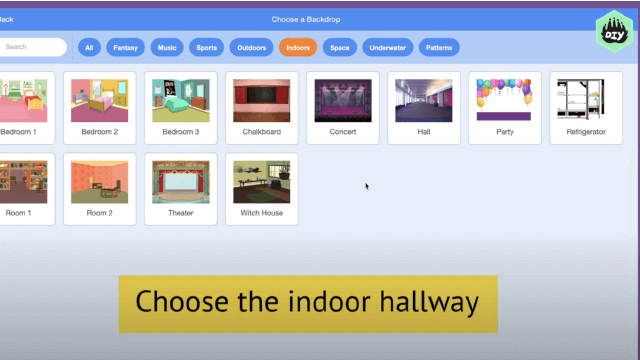

Step-by-step guide to create an interactive social story on Scratch
Step 1
Pick one social situation to show (for example starting school sharing a toy or making a new friend) and write 1 or 2 sentences about it on your paper.
Step 2
Choose 2 or 3 characters for your story and write which feeling each character might show (happy nervous sad proud etc.) on your paper.
Step 3
Go to scratch.mit.edu and click Create to start a new Scratch project.
Step 4
Delete the default cat sprite if you don’t need it.
Step 5
Add a sprite for each character in your story.
Step 6
Add or edit costumes for each character so they have different faces or poses for their feelings (for example neutral happy sad).
Step 7
Choose or draw a backdrop that matches your social situation.
Step 8
For the character who starts the scene add a script: when green flag clicked switch costume to neutral and say your opening line for 2 seconds.
Step 9
Create two small button sprites and label each one with a short choice phrase (for example “Ask to Play” and “Wait”).
Step 10
Add scripts to the button sprites so each button uses when this sprite clicked then broadcast a different message like ChoiceA or ChoiceB.
Step 11
For the broadcast ChoiceA add scripts for the characters that use when I receive ChoiceA then switch to appropriate costumes and say short lines showing feelings for 2 seconds.
Step 12
For the broadcast ChoiceB add scripts for the characters that use when I receive ChoiceB then switch to appropriate costumes and say short lines showing feelings for 2 seconds.
Step 13
Add a Try Again button sprite with a when this sprite clicked broadcast Restart script and add a when I receive Restart script to return costumes and backdrop to the starting state.
Step 14
Click the green flag to play your interactive story test the choices watch the feelings and change any words timings or costumes to make the emotions clear.
Step 15
Share your finished interactive social story on DIY.org
Help!?
What can we use if we can't access scratch.mit.edu or don't have drawing tools for costumes?
If you can't reach scratch.mit.edu you can use the free Scratch Desktop or ScratchJr on a tablet to add sprites, backdrops and broadcasts offline, and if you can't draw costumes use built-in costumes or simple photos/emoji pasted into the costume editor.
My buttons broadcast but the characters don't change costumes—what went wrong?
Check that each button script uses the exact broadcast name (for example broadcast ChoiceA) and that each character has a matching when I receive ChoiceA script that then switches costume and says a line for 2 seconds.
How can I change this activity for different ages?
For younger children use 1-sentence opening lines, picture-only button sprites and preset neutral/happy/sad costumes so they can click the green flag and choose without reading, while older kids can add extra broadcasts, longer dialogue and custom backdrops to make more complex branching scenes.
How can we extend or personalize our interactive social story?
Enhance the project by recording voice lines for each character, adding sound effects to broadcast scripts, creating extra Choice messages for more branches, customizing costumes/backdrops, and then share the polished story on DIY.org.
Watch videos on how to create an interactive social story on Scratch
How to Code a Story in Scratch | Episode 5/8 of Code Along Jr. from Black Girls Code
4 Videos
How to Code a Story in Scratch | Episode 5/8 of Code Along Jr. from Black Girls Code

Scratch Make a Story
Create a Story! Create-Along LIVE: Let's make Scratch projects together!

How to Make a Story in Scratch | Tutorial
Facts about coding and social-emotional learning
🐱 Scratch uses the friendly Scratch Cat as its mascot and lets kids share millions of projects online!
💬 Social Stories were developed by Carol Gray in the early 1990s to help teach social skills to children.
❤️ Reading or creating stories that show how characters feel helps build empathy and perspective-taking.
🎮 Interactive fiction lets players choose actions—perfect for making social stories with branching choices on Scratch.
👩🏫 Combining coding and social-emotional learning (SEL) helps kids practice real-life communication in a creative way.
How do you create a social story on Scratch?
What materials do I need for the Scratch social story?
What ages is a Scratch social story suitable for?
What are the benefits of making social stories on Scratch?
